

Groovix Help
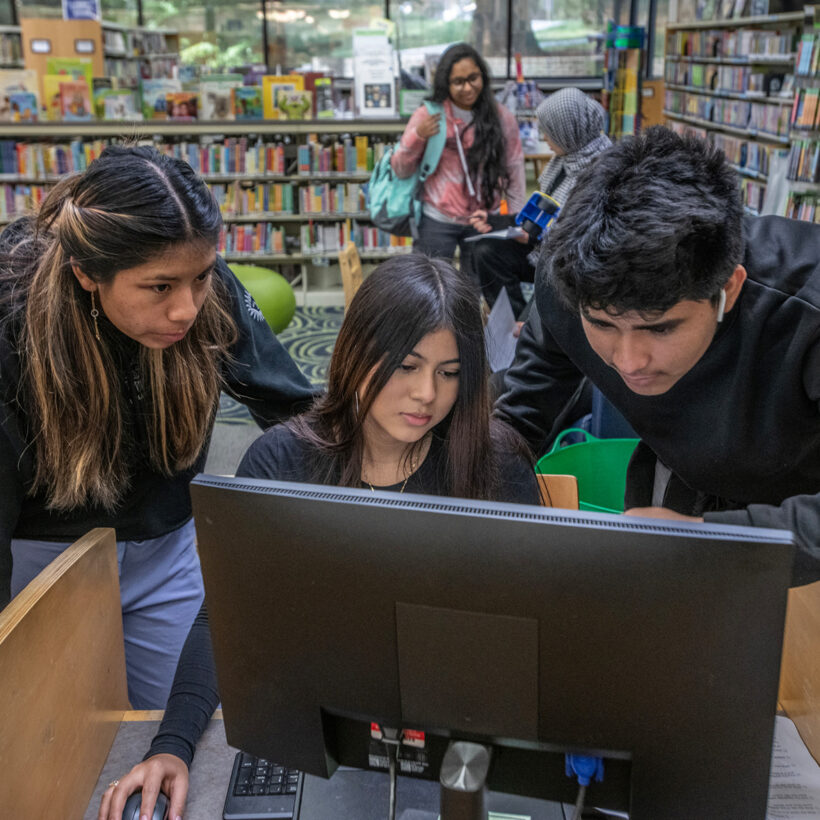

Use Howard County Library System public computers to:
- Browse the Internet using one of the “best-in-class” web-browsers: Firefox, Chrome or Opera.
- Work using word processing, spreadsheet, presentation and database software from LibreOffice (open, modify, print and save Microsoft Office files and store them in their “native” formats).
- Message using Meebo, cross-platform instant messaging products which lets IM users sign in with AOL, MSN, Yahoo, and other IM accounts.
- Manage photographs and images using F-Spot.
- Play and listen to audio via Real Player (bring headphones or buy a pair from the library for $1) or play one of 88 educational games offered from GCompris or ChildsPlay.
- With PACs featuring CDRom drives, listen to music using Amarok.
- Manage your IPod using GTKPod.
- Access files from the popular USB “thumb drives” (bring one or buy one from the library for $12).
For user guides for all software featured on Howard County Library computers, see the PAC Help Page.
Howard County Library System is committed to using free software whenever possible.
Wireless Internet Access
Wireless Internet access (Wi-Fi) is available at all HCLS branches.
Use your wireless-enabled device (tablet, laptop, etc.) to gain access to high speed Internet. Please note that due to network security considerations, access to proprietary email clients and the ability to print to HCLS machines is not available via HCLS Wi-Fi.
Network Identifier or the SSID: hclwireless
Enter the SSID into your Wi-Fi card configuration. Make sure that WEP encryption is turned off.
Need help? Check the wireless card manufacturer’s Web support page.
In order to use HCLS’ Wi-Fi network, you will be asked to agree to our Wireless Internet Policy.
Borrow Chromebooks & Hotspots
Request a hotspot and/or Chromebook so you can work from anywhere. Customers over 18 may request online and borrow one Chromebook, WiFi Hotspot, or Chromebook/Hotspot kit at any branch.
Chromebooks & Hotspots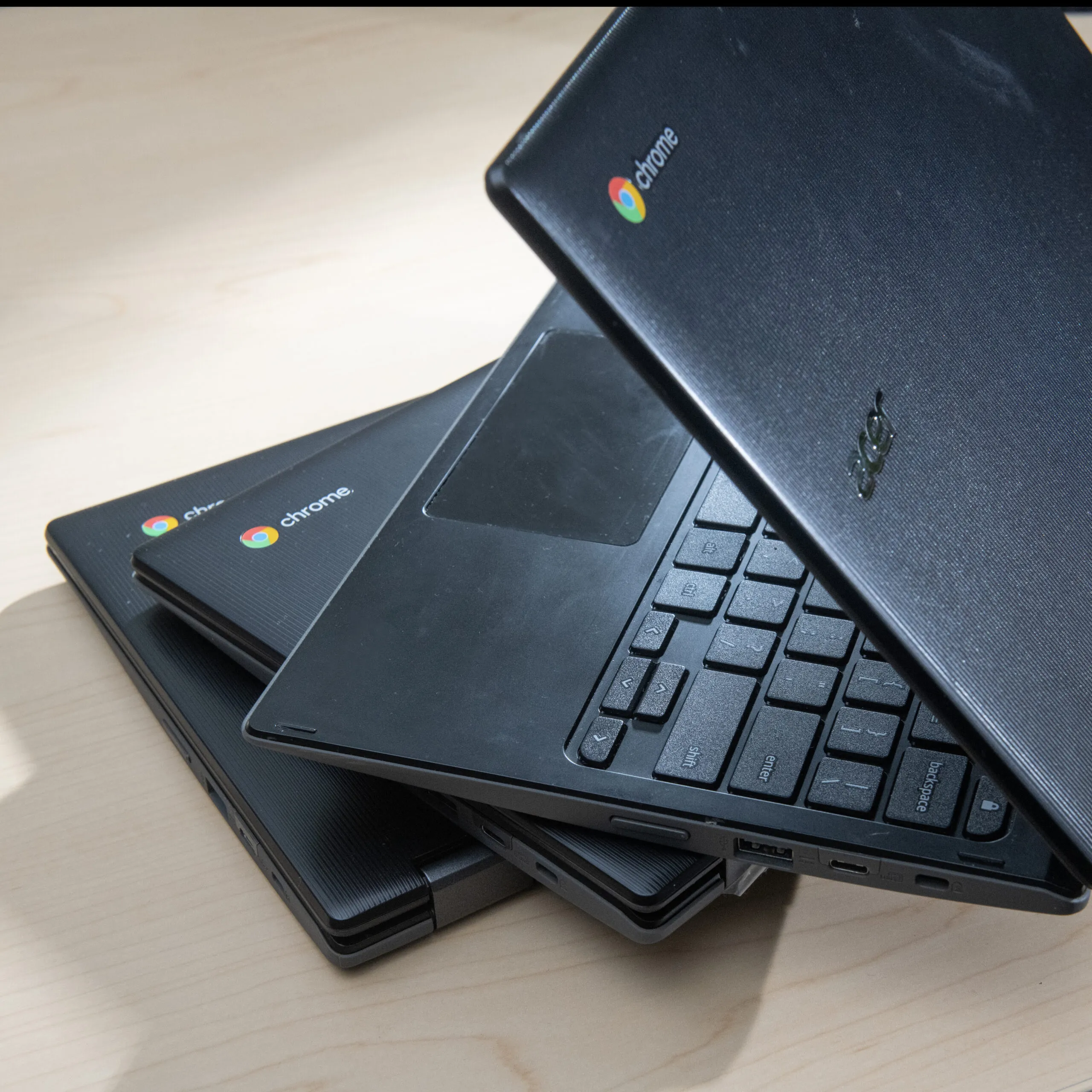

Digital Library Tutorials
Groovix OS
Groovix is a Linux-based operating system from Open Sense Solutions which is an innovative, amazingly efficient way to bring web browsing, web-based applications, word processing, multimedia and more to libraries.
Groovix Frequently Asked Questions
Groovix immediately offers a visual difference. Groovix has a custom screen saver that rotates through pictures of Howard County both past and present.
Groovix also offers the ability to:
Browse – the internet using the up-to-date “best-in-class” web browser, Firefox.
Work – with word processing, spreadsheet, presentation and database software using OpenOffice. OpenOffice is compatible with Microsoft Office (versions 1995-2003), as well as Corel Office suite.
Message – using a cross-platform instant messaging product, Meebo, which will let IM users sign in with their AOL, MSN, Yahoo, and Google Talk.
Play – streaming audio or video via RealPlayer. Bring your headphones or buy some from us for $1.00.
Access – your files from a USB device. Save and retrieve files from your portable USB drive. Bring your own or buy one from us for $12.00.
Clicking on the Start button will provide you with access to the following:
- Link to information about Solar Panels at HCL
- Firefox web browser
- Adobe Reader
- Meebo instant messaging
- OpenOffice Suite word processing, spreadsheets, presentation, draw, etc., as well as online Help
- Casual and Children’s games
Logout and clear all information. Using this icon ensures the most secure way to clear the computer for the next customer. When you are finished using Groovix, click on this icon to erase your “session”. The system then creates a new “session” with a clean slate for the next customer. Nothing from the previous “session” can be accessed.
Firefox web browser. Clicking on this icon opens Firefox.
Although using a public computer to access your bank account, eBay auction or stock portfolio may not be the best choice, some customers have no other option. Simply “Xing” out of the browser will not clear your information or history of sites you have visited. Groovix will refresh after 5 minutes of keyboard or mouse inactivity; however, if you walk away from the computer and someone else sits down before the refresh happens, they can cancel the refresh. The best practice for anyone using a Groovix machine is to click on the Logout icon Image Goes Here next to or under the Start buton. For more information about the logout icon…
Every web site should be able to viewable in any browser.
Why can’t I use Internet Explorer?
Howard County Library has chosen Firefox as its browser due to security issues with Internet Explorer. To learn more about these security risks, click here. The United States Computer Emergency Readiness Team has reported on the security issues with Internet Explorer as far back as 2004. You do reduce your exposure to several vulnerabilities by using something else for most web browsing (Firefox is next most popular web browser).
What can I do if my site requires Internet Explorer?
Try using Firefox. If the browser does not render the site correctly, this is strictly due to bad coding on the web site’s part. The W3C – World Wide Web Consortium sets standards for web design. If the site has followed these standards, the page can be viewed in any browser. Please feel free to contact the web site and point them to the W3C.
Use Print Preview
Yes, you can print; however, web pages do not equate to printed pages. A scrollbar on the right side of the web page means more than 1 page will print. To determine how many pages this web page will be when printed, click on File, then select Print Preview. 
Print Dialog Box
Once you’ve determined how many printed pages your web page is, click on File, then select Print.
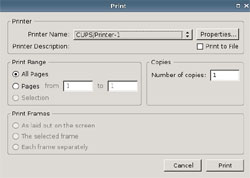
From the print dialog box, you can do the following:
Printer section – If you want your print job to go to another printer, use the drop-down arrow in the Printer section and select a different printer.
Print Range section – Rather than printing every page, select Pages (instead of All Pages) and tell the printer exactly which pages you need (e.g. page 5 to page 7).
Copies section – Allows you to change the number of copies. Number of copies will default back to 1 as soon as the print job is sent.
Print Friendly links
“The Web” was not originally designed to be printed. However, more web developers are using “Print Friendly” links or icons. Look for these links or icons on the web site as they will help your web page to print better.
Copy & Paste
If still unable to print, highlight all the information you want printed from the site–
Click on Edit.
Select Copy.
Click on Start button.
Select OpenOffice.org Writer (word processor).
Once loaded, click on Edit.
Select Paste.
Click on File.
Select Print.
Note: Keep in mind that if the web site used white letters that when you paste it onto the white background of OpenOffice the letters will not show. Highlight text in OpenOffice – click on the drop-down arrow next to the capital A on the toolbar and select a different color. You can then print.
All of the Groovix machines will have the USB port in the front.
We hope that our online OpenOffice Users’ Guide, which can be found under the Start button, will provide you with all that you need to get started. We’ve included an Other Help Resources tab with links to tutorials, videos, and other FAQs, as well as a direct link to OpenOffice books owned by Howard County Library.
Meebo, the web messenger that lets you access IM from absolutely anywhere. Meebo supports msn, yahoo, aol/aim, google talk (gtalk), jabber and icq. If you are a user of one of the listed networks, all you need is your “screen name” and password. Your buddy list or contacts will come over from that network’s server. For Example, if you are an AIM user, your buddy list is saved on the AOL server. Once logged in, your buddy list will appear.
The site is using something other than RealPlayer. Groovix currently supports RealPlayer and MPlayer. If these two applications are unable to play the sound/video, then the site is using an application that isn’t supported on Groovix. Click on the volume icon (next to the time in the lower right hand side) to adjust the volume.
Groovix has the latest version of Adobe Reader for viewing, printing and saving PDF files.
Viewing PDF files
Click on PDF link on a web site. Your PDF will open in Adobe Reader.
Printing PDF files
Click on PDF link on web site.
Once PDF opens, click on printer icon.
Click on OK at Print dialog box.
You can change the number of copies from this dialog box before clicking on Print.
If you find an image on the web that you want to save, you can save it to either a floppy disk or USB drive.
Once you’ve found the image you wish to save
Insert floppy disk into drive.
Right click on image.
Select Save Image As – Save Image box will appear.
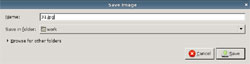
Click on Browse for other folders. Save Image box expands. 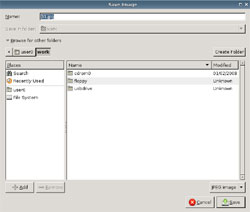
Double click on floppy.
Click on Save.
Once you’ve found the image you wish to save
Insert USB Drive into slot.
Right click on image.
Select Save Image As – Save Image box will appear.
Click on Browse for other folders. Save Image box expands.
Double click on usbdrive.
Click on Save.
Once you find the web page you wish to save:
Insert your floppy disk into the drive or your USB Drive into the slot.
Click on File.
Select Save Page As.
When the Save As box appears, double click on floppy or usbdrive.
Click on Save.
You will actually be saving a file and a folder. The file will end in html and the folder will contain things like CSS, flash, etc. that maybe part of the web page. You’ll need both to view the web page properly.
If for some reason you don’t save your files/images/documents correctly to your USB Drive, this will allow you to move them from the machine to your USB drive.
Click on Start.
Click on Copy files to USB Drive.
Highlight the file you wish to move to the USB Drive.
Click OK.
Copying file box will appear.
When finished message will appear.
Click OK.
To ensure that your files are removed from the machine, click on logout icon  .
.